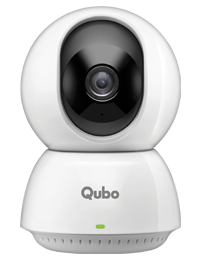

To turn the siren on or off, please click on the Siren icon on the control panel below the live camera view. When Siren is turned on, the Siren icon will be highlighted. Please note that the siren will stay turned on for 10 seconds only at a time. If the Siren icon is not visible, please click on the bottom arrow to expand the control panel to see all controls.
To rotate your camera, please click on the Rotate icon in the control panel below the live camera view. Please note this control is only visible if your camera supports rotation via the App.
To enable privacy mode, go to your camera settings by clicking the three dots on the top right of the live camera view. Use the on and off toggle to enable or disable privacy mode.
To fast forward within a past recording, navigate to past recordings by clicking on Recordings & Alerts on your camera screen. Tap on the screen to view controls and click on viewing speed (1x) to toggle between 1x, 2x, and 4x speeds. You can also double tap to skip forward.
To view past recordings, click on Recordings & Alerts on your camera screen. Recordings of the current date will be displayed and you can click on Today to open the calendar and select past dates. Please note cloud recordings are saved for up to 28 days depending on your plan, while a 64 GB microSD card can typically store 3–7 days of continuous footage depending on the selected resolution.
To record video, please click on the Record icon on the control panel below the live camera view. When recording is ongoing, the Record icon will be highlighted and a timer will continue. Click on the Stop icon to stop recording. Recordings are saved on your smartphone and can be accessed via the Qubo App Gallery.
Recordings and captured images are saved on your smartphone and can be accessed via the Qubo App Gallery. Click on the gallery icon on your live camera screen and browse recorded videos and images.
Please click on the Wi-Fi icon on the top left of the live camera view to see signal strength. Please note that Wi-Fi signal strength is measured in negative dBm values and if your strength is less than -60 dBm, you will need to adjust the router position or get a Wi-Fi extender or Mesh Wi-Fi system to boost signal. While Smart Cameras need less than 5 Mb upload & download speeds, walls — especially exterior home walls — reduce Wi-Fi signal strength. Cameras with weak signal may face intermittent connectivity issues.
If you observe low Wi-Fi signal strength, you can opt for an affordable 2.4 GHz Router & Repeater to boost the signal strength of the camera or choose a dual band Mesh Wi-Fi system that you can also use for day-to-day browsing, video streaming, and work. During setup of a Wi-Fi extender or Mesh Wi-Fi, you will have an option to keep the same name & password as your home network or create a new one. Once setup is complete, please update the Wi-Fi network of your camera if you have chosen a different network name and re-check the Wi-Fi signal strength of your camera again after 15 minutes. If the setup is working, you will see an increase in the dBm value.
Please note while the 5 GHz band provides high speed, it has a shorter range and is not ideal for connected devices. All Qubo connected devices support 2.4 GHz Wi-Fi for long range connectivity. Always connect Qubo cameras to the 2.4 GHz network which is provided by default by most internet providers.
To change the Wi-Fi network, navigate to Settings > Update Wi-Fi and follow the instructions in the App. You will be guided to long press (5–10 seconds) the reset button as the first step.
To reset the Wi-Fi camera, first remove the camera by navigating to Settings > Remove Device by clicking on the three dots at the top right of the camera screen. Then go to the home page, select Add Device and follow the instructions in the App. You will be guided to long press (10 seconds) the reset button as the first step.
Firstly, check if the camera LED is on to ensure the camera is getting power. If the LED is not turning red or green and the camera power socket works for other devices, please raise a request for replacement. Secondly, if the camera LED is on but the camera is not connected, please restart your camera and router. Thirdly, repeat step two but this time bring the camera next to the router to rule out any challenges due to Wi-Fi range, which may require an extender or mesh system.
If the camera still doesn’t work, please raise a ticket for camera replacement. These steps are especially helpful if you live in an area experiencing power surges, power or Wi-Fi outages, or live in large homes.
Firstly, check if these are rare instances or regular occurrences. Occasionally outages at the internet provider’s end may lead to intermittent issues. Secondly, monitor camera performance for 15 minutes when no other devices are consuming router bandwidth for video streaming, work, or games. Internet plans above 100 Mbps generally provide a seamless experience. Thirdly, bring your camera closer to the Wi-Fi router and monitor for 15 minutes to assess any distance issues that can be resolved using a Wi-Fi extender or Mesh system.
If the camera still doesn’t work, please raise a ticket for camera replacement. These steps are especially helpful if you live in an area experiencing power surges, power or Wi-Fi outages, or live in large homes.
Qubo offers an industry leading cloud storage solution with up to 28 days cloud back-up option and plans starting from Rs. 99/month. You only need one plan for multiple devices. Select the Shield icon on the top right of your camera screen to view and compare plans. Select a plan that meets your needs and once enabled, you can view past recordings in the Recordings & Alerts section.
With cloud back-up, your footage remains safe from theft or corruption, streams faster, and is accessible from anywhere.
CCTV surveillance requires high endurance as read and write operations happen continuously at high speed. A C10, V30, or U3 microSD card from an authorized seller is recommended for storage. MicroSD cards from unauthorized sellers or A1 microSD cards are prone to data corruption and may be incompatible with cameras having firmware built in India.
Access the microSD card slot by unscrewing the bottom of the camera. Insert the microSD card and allow the camera to automatically check, reformat if needed, and reset the device. Please wait for 15 minutes before checking the Recordings & Alerts section of your camera for past recordings.
Qubo cameras are designed to provide relevant footage with past recordings of periods when activity is detected, such as motion or a person depending on your preference. If you require 24x7 recorded footage irrespective of events, you will need to use a microSD card.
Once the microSD card is set up, go to Settings > Recordings & Notifications by clicking on the three dots on the top right of the live view screen. Ensure the Continuous Recording option is turned on.
To format your microSD card, navigate to Settings > Storage by clicking on the three dots on the top right of your live camera screen. Select Format SD Card and confirm to format the microSD card.
Please note that the microSD card is formatted initially because CCTV cameras encode video into an MPEG4 stream which requires the camera to serially store data on the microSD card.
Firstly, check if the microSD card is inserted properly. While inserting, you should feel a click when the microSD card is properly inserted. Navigate to Settings > Storage to see if any SD card is detected by the device.
Secondly, reboot the device and again navigate to Settings > Storage to check if the SD card is detected. Thirdly, test the microSD card on another device such as a tablet or laptop to verify whether the card is working or if a replacement is required.
If the SD card still doesn’t work, please raise a ticket for camera replacement. These steps are particularly helpful if you live in an area experiencing power surges, power or Wi-Fi outages, or if you are using incompatible microSD cards that may be prone to corruption.
Firstly, format the microSD card by navigating to Settings > Storage by clicking on the three dots at the top right of the live camera screen.
Secondly, try re-inserting the SD card and check after 15 minutes if recording resumes. Allow the camera to automatically detect, format, and set up the microSD card after reinserting.
Thirdly, reboot the device and check again after 15 minutes if recording resumes. The camera will automatically detect, format, and set up the microSD card after rebooting.
If the SD card still doesn’t work, please raise a ticket for camera replacement. These steps are particularly helpful if you live in an area experiencing power surges, power or Wi-Fi outages, or if you are using incompatible microSD cards that are prone to corruption.
To change the resolution of the live view, please click on the Resolution icon on the control panel below the live camera view. By default, the resolution is optimized to ensure faster loading and lag-free streaming even on low networks. If you have good signal strength, you can increase the resolution for sharper clarity.
To configure night vision, navigate to Settings > Night View by clicking on the three dots on the top right of your live camera screen. Select Black & White for a sharper view or Color for colored images in low light continuously.
In the default Auto mode, color mode is automatically turned on along with the flashlight when motion or a person is detected, and remains black & white during the rest of the time.
Navigate to Settings > Recording & Notifications by clicking on the three dots on the top right of your camera screen. You can choose to receive alerts for person detection or motion detection.
Select Qubo’s proprietary AI person detection for the best performance, as it has very few false alerts. With motion detection, false alerts may occur due to sudden lighting changes, shadows or reflections, or movement in curtains or plants. Reducing motion sensitivity to low or medium can help reduce irrelevant alerts.
Firstly, close applications that are not in use and relaunch the Qubo App on your smartphone. When a smartphone’s memory is occupied by multiple apps, it may lead to performance issues.
If loading speed is still slow, please ensure you have the latest version of the Qubo App by checking the Play Store or App Store. Qubo’s R&D team continuously releases improvements to enhance the customer experience.
If the issue is still not resolved and the camera and smartphone internet are working fine, please raise a ticket via the Help & Support section in the Qubo App.
If you are using person detection, false alerts are usually rare. If you experience frequent incorrect alerts with person detection, please raise a ticket so the team can understand your scenario better.
If you are using motion detection, false alerts may occur due to sudden lighting changes, shadows, reflections, or movement in curtains or plants. Navigate to Settings > Recording & Notifications by clicking on the three dots on the top right of your camera screen and select low or medium sensitivity for motion detection.
You can also set up detection Zones so the camera monitors only specific areas instead of the entire field of view. This helps remove irrelevant areas that may generate incorrect alerts.
When you click on the Rotate icon on the control panel below the live camera view, you will have an option to save the current position of the camera by clicking on the save icon on the right above the movement controls. You can also go to the preset section and select an earlier saved preset position to move the camera orientation to that location.
To enable motion tracking, navigate to Settings > Recording & Notifications by clicking on the three dots on the top right of your camera screen. Toggle Motion Tracking on — when a person is detected, the camera will track the person while they remain in the field of view and then return to the original location.
Go to the gallery to view saved recordings and select the recording you want to share. Click on the Share icon at the top right of your screen to share the recording.
You can also choose to save a live event to the gallery or download an alert you are viewing by clicking on the download icon below the playback.
To connect with Amazon Alexa, go to “Works with Alexa” in your camera settings and log in with your Amazon account. Follow the steps to view your camera on an Alexa Echo device.
To set up Google Assistant, open the Google Assistant App and add Qubo devices under the Skills option.
Firstly ensure that audio is enabled and the audio icon is highlighted to listen to sound. Secondly, check that there are no obstructions near the microphone and speaker of the camera.
If the audio is still not working as expected, please check whether audio improves when using another smartphone. If the problem persists, please raise a support ticket.
Firstly, try using other controls such as flashlight or capture to ensure the App is connected to the camera. Then try to gently rotate the camera manually.
If you feel high resistance or the movement seems stuck, dust may have accumulated. Try clearing the dust by gently rotating the camera by hand 8–10 times. If the issue persists, please raise a support ticket.
No, the microSD card is not included in the box. You need to purchase it separately.
Rotate the camera lens part in the upward direction. You will find the microSD card slot there.
Open the camera live footage and navigate to Settings > About Device to view the MAC Address and Serial Number.
Qubo offers up to 28 days of cloud backup depending on your selected subscription plan.
Cam 360 Pro requires a 5V 1A power supply.
How to use your Smart Cam
How to setup your Smart Cam