

Smart Door Lock Nova

About Orders
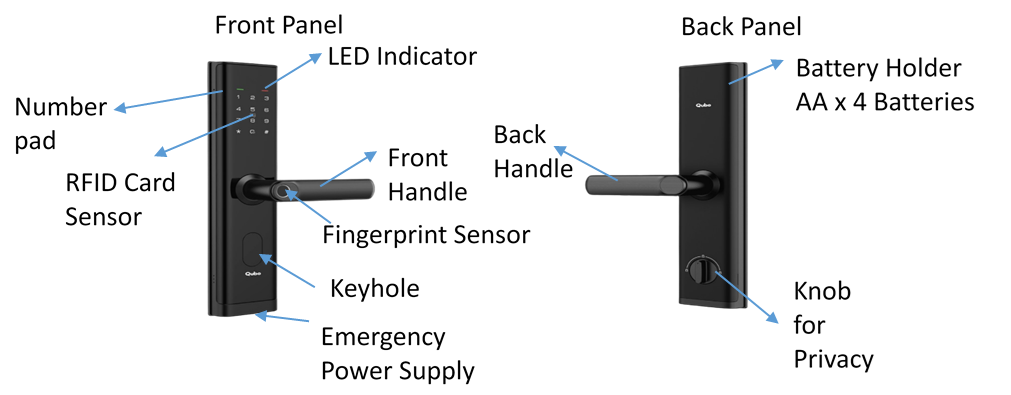
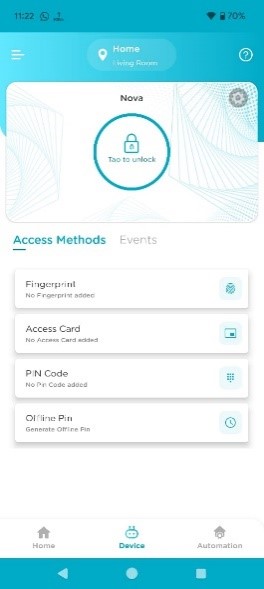
- Tap on Device setting
- Tap on Device
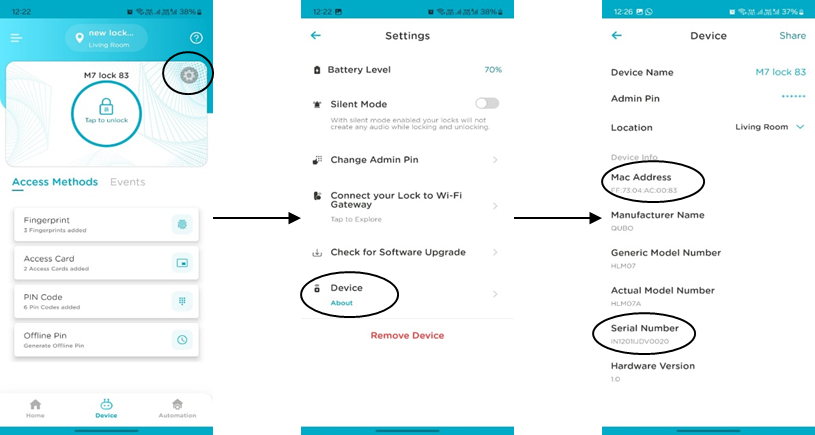
- Download the Qubo Home app from App/Playstore
- Sign In if you have already have an account or Sign Up and create an account
- Tap on hamburger menu and then on ???Add Devices???
- Tap on Smart Lock and select your lock Model
- Allow Bluetooth permission to scan your lock and select your lock
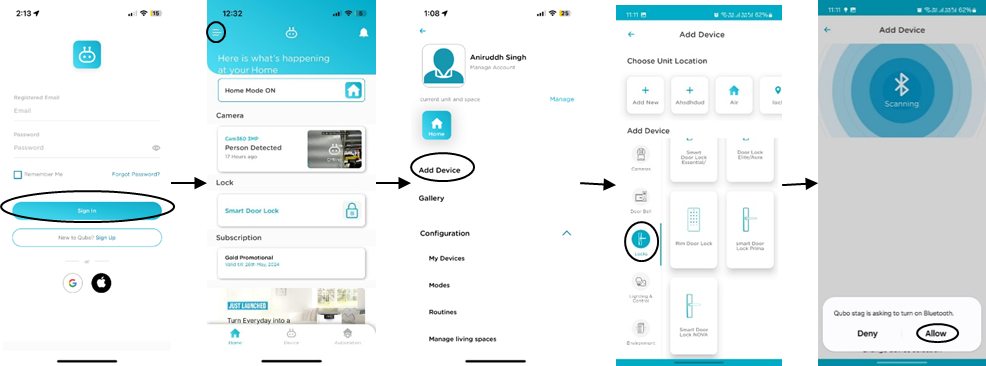
- Give name to your lock and set a master pin code and tap on continue
- Once setup is done, Tap on continue and your lock is connected to your App now.
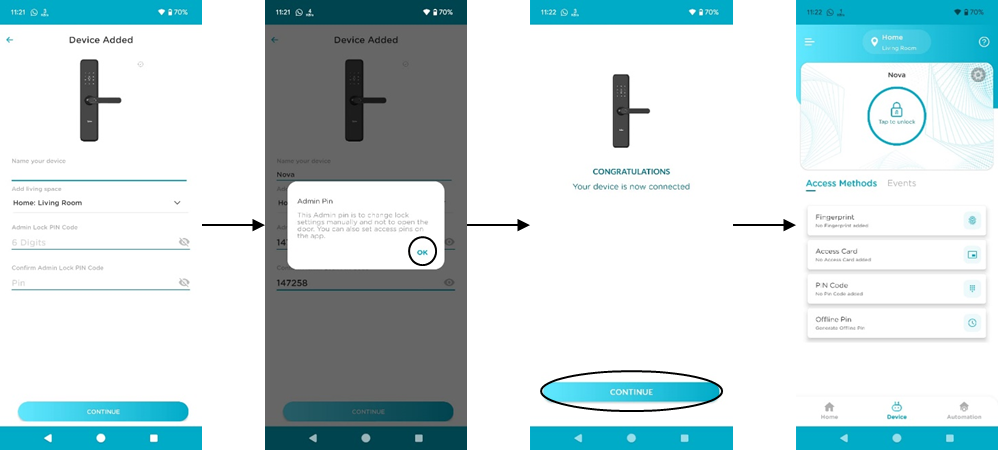
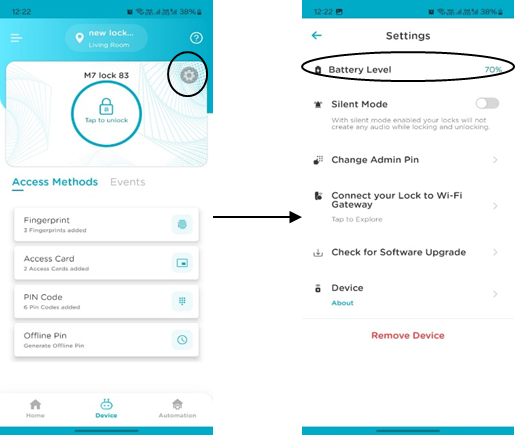
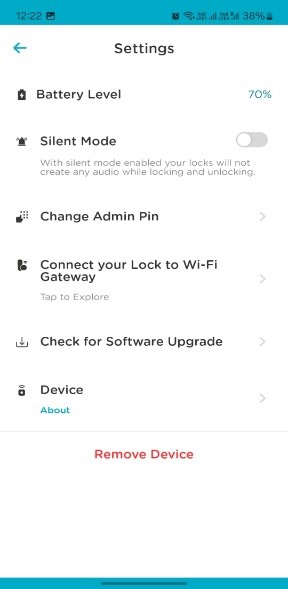
- Tap on Device setting
- You can see the battery status at top
(*Battery status gets updated only when you sync up with lock)
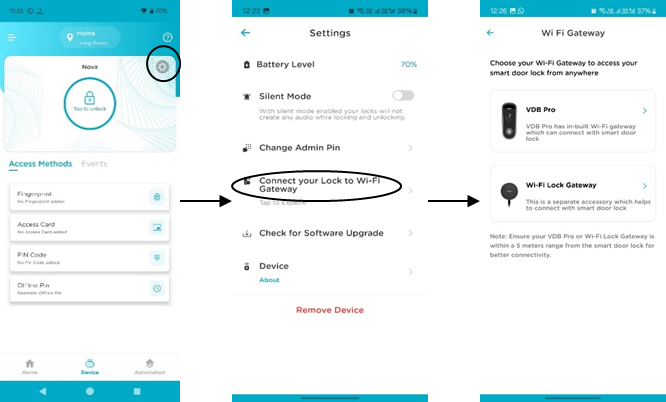
You can use *Wi-Fi gateway or *Video Door Bell Pro. A Wi-Fi gateway/VDB pro allows you to remotely access your lock. To connect with Smart Door Lock, follow below steps:
- Open Device settings
- Tap on Connect your lock to Wi-Fi Gateway
- Choose either VDB pro or Wi-Fi gateway
- After scan is complete select your device and automatically it will setup.
(*Qubo Wi-Fi gateway/VDB Pro work only with Qubo Smart Door lock and Vice Versa. Wifi Gateway/VDB pro is sold separately. Also Range between Smart Lock and Wi-Fi gateway/VDB pro to work smoothly should be less than 5 meters in straight line of sight.)
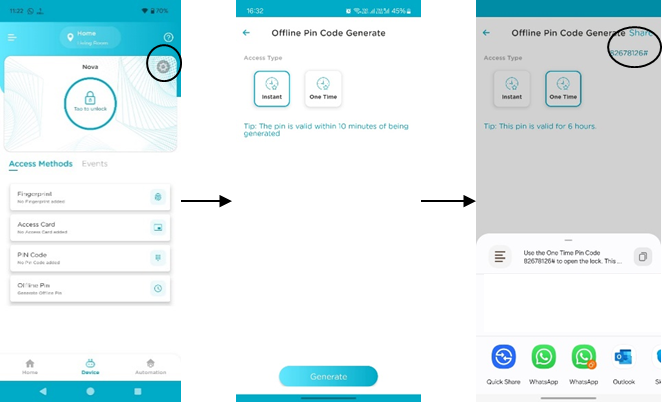
Yes, you can give access using Offline Pincode. To generate Offline Pincode follow below steps:
- Tap on Offline Pincode
- Select from *Instant or *One-Time
- After that tap on generate, on top right corner of the screen a random Pincode is generated and tap on share to share the pin code with anyone.
(*Instant: Pincode is only valid for 10mins and can be used multiple times during that duration One-time: Pincode is valid only for 6hrs and can be used only once during that time period.)
No, there is no way lock can be opened from outside using any means (Key, Fingerprint,RFID,App). (*The privacy knob has a push and rotate mechanism which makes it difficult for kids below 6 years to use from safety perspective.)
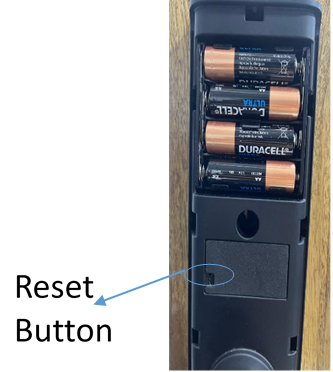
Open the back panel. Double press the Reset button (using pin) swiftly 2 times to manually factory reset the lock. (*A factory reset erases all guest and owner data from your lock, restoring it back to its original, out-of-the-box settings. If someone has factory reset the device, then the user won???t be able to use or make changes using application as device goes in its original out of box state.)
- Open Device settings
- Tap on Remove to remove the device from the current account
(*Also If you want to commission (connect to app) the device from a different account then the user has to remove the device first from current account and then only you can commission the lock in different account.)
Standard
You can check this through Qubo App, please follow below simple steps:
- Open the Qubo App and go to the lock screen, which is the screen that shows you whether your door is locked or unlocked.???
- Select PIN Code
- Select user for which you are looking for PIN code
- You have the PIN code on your smart phone screen
Yes, you can do that. Please follow below steps:
- Open the Qubo App and go to the lock screen, which is the screen that shows you whether your door is locked or unlocked.
- Select Access Card
- Select user for which you are looking to remove access card
- Remove the card


