

Smart Dashcam GPS

Dashboard Explainer
Device Related
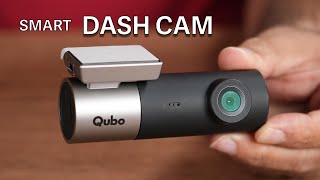
Dashcam is a video camera mounted on the dashboard or windscreen of a vehicle. It continuously records the view of the road and traffic through the windscreen.
Dashcam Pro 2K is useful as it provides video evidence in the below mentioned scenarios-
- Car Accidents
- Insurance Claims
- Incorrect Challans
- Journey Vlogging
- Connect the Dashcam to the power adaptor and insert the adaptor into the car charger socket. Insert SD card into the SD slot for installation.
- Turn on car ignition and check if the Dashcam shows a Red LED. The device will announce, "Qubo Dashcam is ready for Setup. Please follow the instructions from the Qubo App." Download the App and follow the steps.
- Clean the windshield area where the Dashcam will be installed.
- Remove the protective film from the adhesive and attach the Dashcam on the windshield, ensuring it doesn't block the driver's view.
- Re-attach the USB cable to the Dashcam. Use the pry tool to tuck in the cable properly behind the windshield/molding. Reconnect to the power adaptor and insert into the car charger socket.
After launching the App, follow on-screen instructions to install the Dashcam. The Dashcam creates a Wi-Fi hotspot which connects automatically with the App. If not, enter the default password 12345678 from your Wi-Fi settings to connect.
No. The Dashcam needs Internet only in these cases:
- During installation (to link your account with the Dashcam on our cloud)
- When changing settings and syncing with other devices
- If you want to remove the device from your account
You have two options:
- Pull the device off from the adhesive stuck to the windscreen. (Adhesive will stay on the windscreen.)
- To remove the adhesive too, pull it strongly from one end until it comes off completely.
It's not mandatory, but we recommend installing the Dashcam in the car. The Dashcam needs a power source above 12V to function.
The Dashcam supports Mini USB Cable.
Mini USB Cable comes with six-months warranty.
Please check if the Dashcam is powered on. Sometimes it takes extra time. If it still doesn't connect, please reboot the device and try again.
Dashcam comes with a one-year warranty.
-5°C to 65°C.
No.
Use the Pry tool to tuck in the cable. Route the cables behind the vehicle heading, then behind the weather seal of the door, and bring the power cable inside the glove box for a concealed look.
Wireless Apple CarPlay/Android Auto uses your phone's Wi-Fi hotspot. Disconnect them temporarily to connect your phone to the Dashcam for setup or viewing/downloading videos. Your Dashcam still records when the car's ignition is on, even if the phone isn't connected.
On Android, the phone usually switches to mobile data if Wi-Fi has no internet, or prompts you to switch. Older phones may not. In that case, disconnect your Wi-Fi so that mobile data works. Dashcam records whenever the car's ignition is on, even if your phone isn't connected.
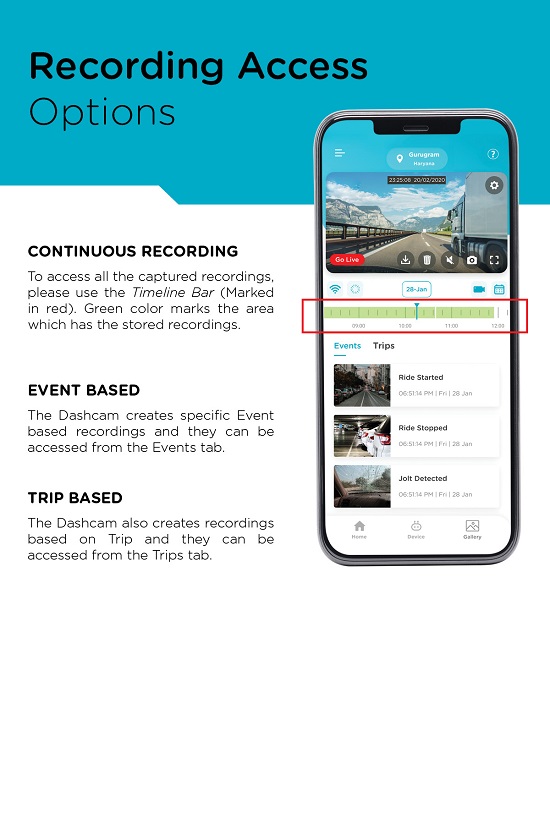
The Dashcam requires a Micro SD card to record videos. It records continuously and you can access the footage with the Timeline Scrubber. It also generates event-based and trip-based recordings, accessible from Events and Trips tabs. Downloads are limited to 1-minute clips.
Yes, with a Micro SD card installed, the Dashcam records continuously. Event-based and trip-based recordings are also available. Each downloadable clip is 1 minute.
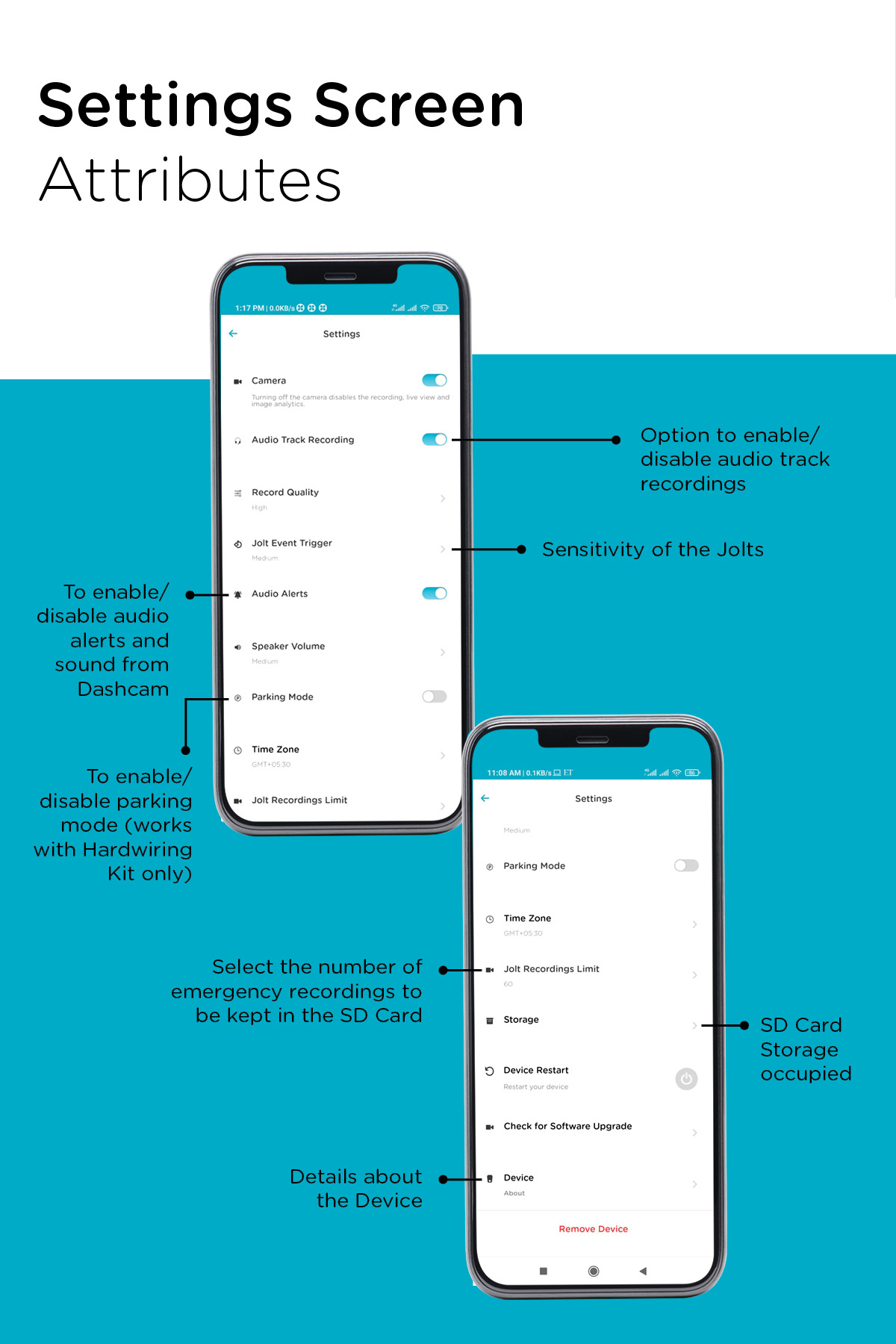
The Dashcam remains active for 1 minute after the car ignition is turned off. For longer recording when parked, a Hardwiring Kit is needed (sold separately).
No. The App shows all events and recordings only when connected to the Dashcam's Wi-Fi hotspot. When disconnected, only downloaded clips are available.
No. Real-time video access requires your phone to be connected to the Dashcam's Wi-Fi hotspot.
No. You must be connected to the Dashcam's Wi-Fi hotspot to view feed and recordings, even if you use the same login credentials.
The Dashcam uses a rechargeable lithium-ion battery to maintain the correct timestamp after the car is off (standby time: 3 days). If your car isn't used for 3+ days or on first use, the battery may drain and the device loses track of time, causing wrong timestamps. To correct, reconnect the Dashcam to the app; it will auto-update the time for future videos.
The Dashcam may momentarily lose GPS signal due to network issues or when inside buildings. This is temporary and the signal usually returns quickly. There will be a beep sound once it reconnects.
App Related
Yes. The App is named Qubo Pro and is available on both Play Store and App Store. You can also download the App using the QR code below:

No. You can use your existing Qubo account in the Qubo Pro App as well.
Yes, during installation via the App. You can name your device and set a new password. Once set, you can't change it again.
Open the App, go to Device Dashboard, tap on Settings, then Device. Here, you can tap on the password field to view it.
In the Device Dashboard, go to Settings and select “Remove Device” at the bottom. Your device will then be removed.
If you factory reset the Dashcam, it is no longer connected to your account. To remove it from your app, go to Device Dashboard Settings Remove Device.
No. Downloading a video does not use your mobile data. Your phone just needs enough storage space.
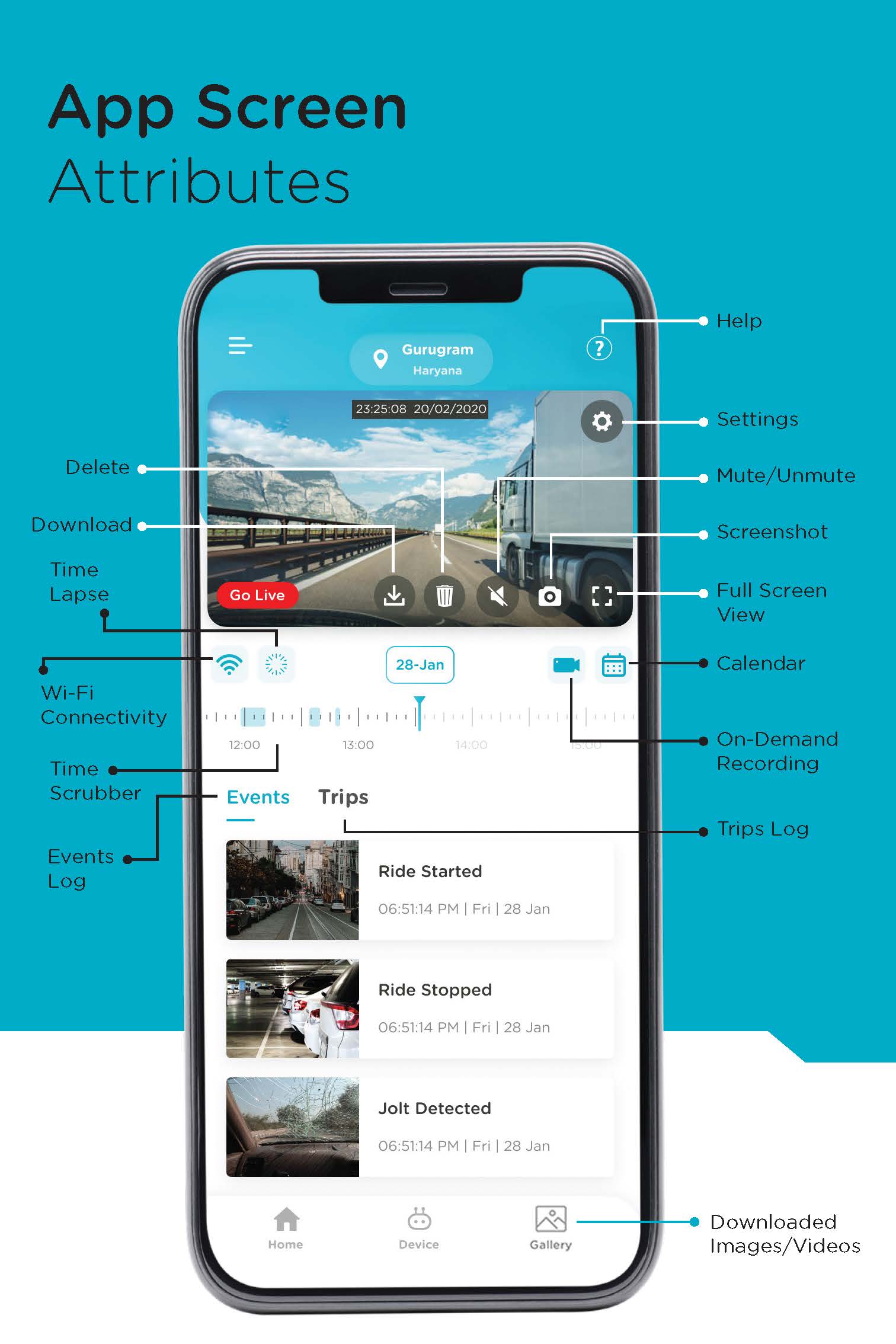
The App offers multiple features:
- Live View
- Event based recording
- Trip based recording
- Timelapse
- Check live speed, compass, and elevation on the Video Player
- View map feed with trip recordings
- For trips, see average speed, distance travelled, and trip duration
Currently, the App records these events:
- Ride Started – When the car ignition is ON and Dashcam gets power
- Ride Stopped – When the ignition is OFF and Dashcam loses power
- Jolt Detected – When the Dashcam detects a bump or collision
- Over Speeding Detected – If the car crosses the speed limit set in the app
Yes. In Settings, under “Record Trigger,” you can set the sensitivity for jolt detection. High sensitivity detects even slight bumps, low detects only major impacts.
Each time the car's ignition turns on, the Dashcam starts recording. It stops when the car is turned off. If the car is restarted within 5 minutes, it counts as the same trip. All trips can be viewed under the Trips tab.
If the ignition is off for less than 5 minutes, the recording is considered the same trip. If off for more than 5 minutes, a new trip starts.
Download the video first. Once it appears in your phone's Gallery, you can forward or rewind as needed.
Each downloadable recording is 1 minute long. For a 5-minute trip, you'll need to download 5 clips.
- If connected with the App: Go to Settings, scroll to the bottom, and tap “Device Restart.”
- If not connected: Use a pin to press the Reboot Key on the Dashcam.
In Settings, turn “Audio Track Recording” On or Off as you wish.
In Settings, toggle “Audio Alerts” On or Off as per your convenience.
You can manage your account from any compatible device, move your account to a new phone, or remove the Dashcam from the app if you think your phone is compromised.
Use the on-screen calendar in the app to select and view recordings for a specific date.
To download: Click the Download arrow icon on the selected event.
To delete: Click the Delete icon.
Share the login credentials of the Qubo Pro App to give access to other members.
Yes, anyone logged in with the same credentials has the same rights and can remove or delete the device.
Time-lapse video summarizes the whole day's recording in a single video. Below the player, tap the Timelapse icon, select a date, and if enough footage is available, a timelapse video will be generated.
GPS Related
In GPS Version there is an added benefit of GPS Logging which helps in tracking different parameters related to it like Speed, Distance, Compass and Elevation from Sea Level.


