Smart Bullet Cam FAQs
Application
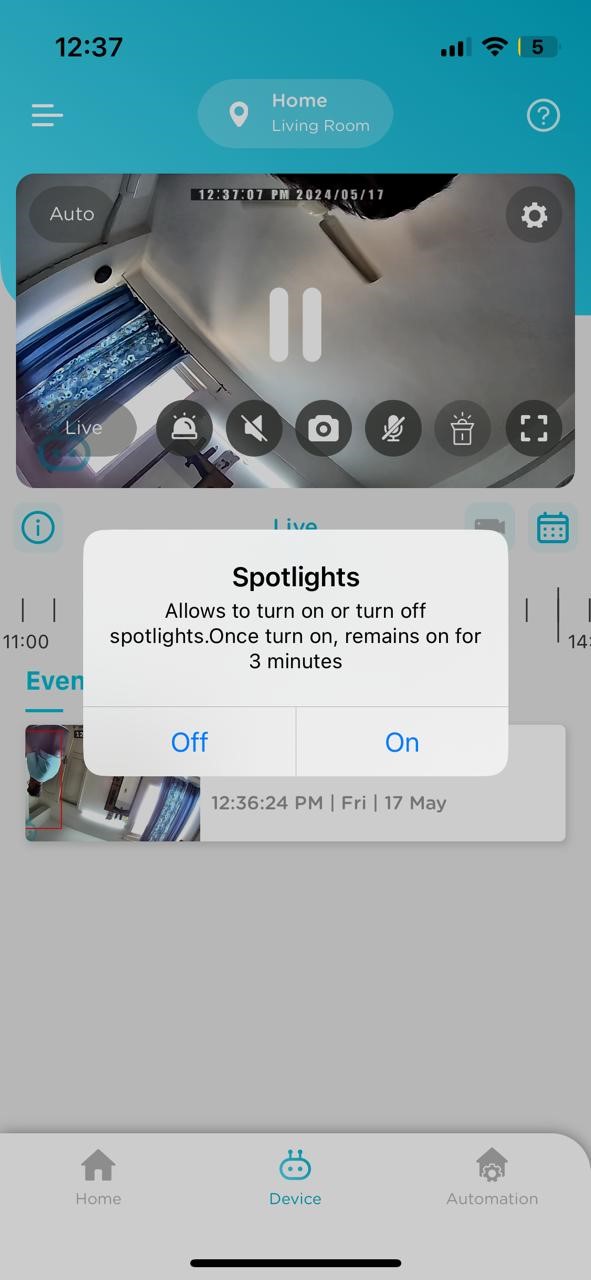
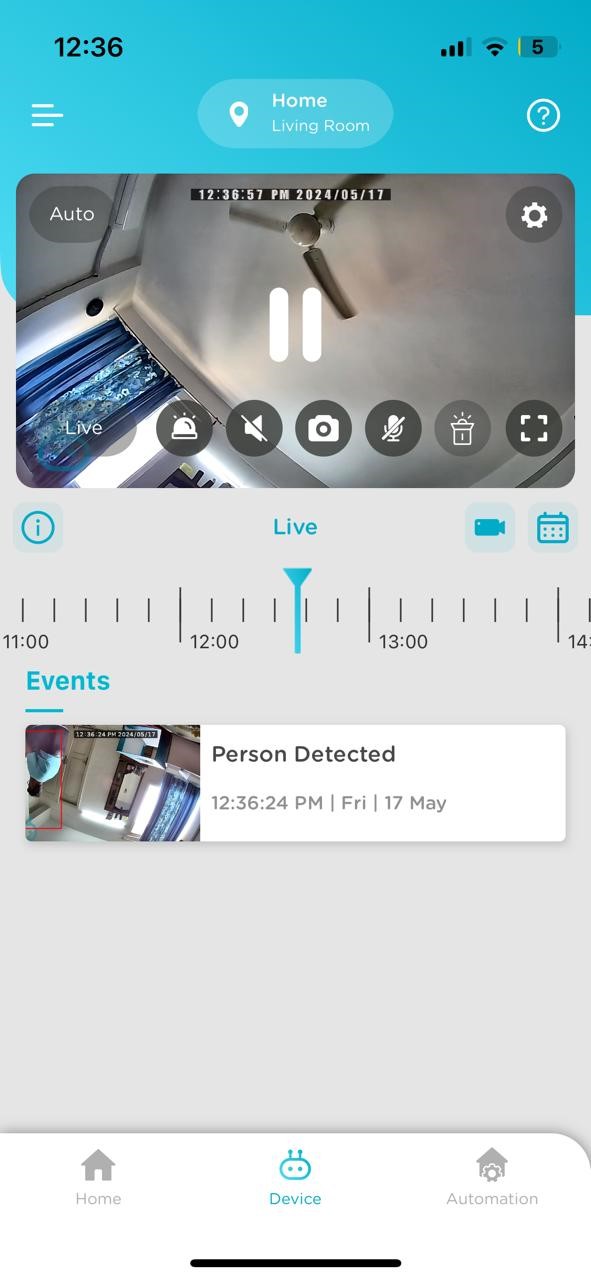
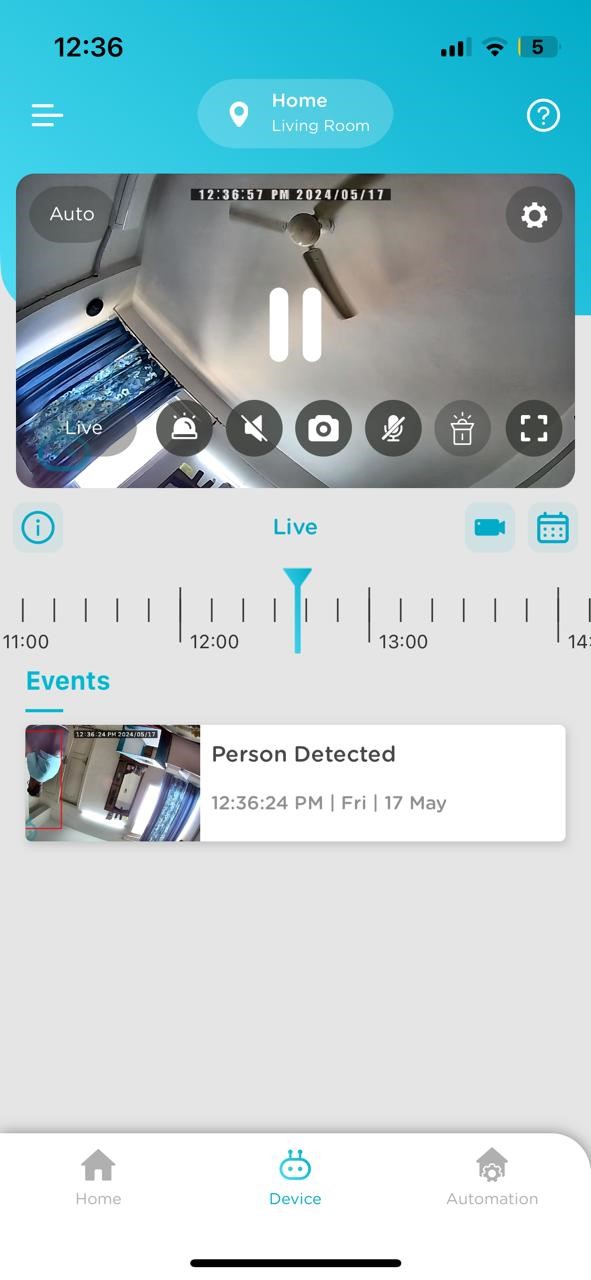
Tap on Spotlight button and then tap on ON button
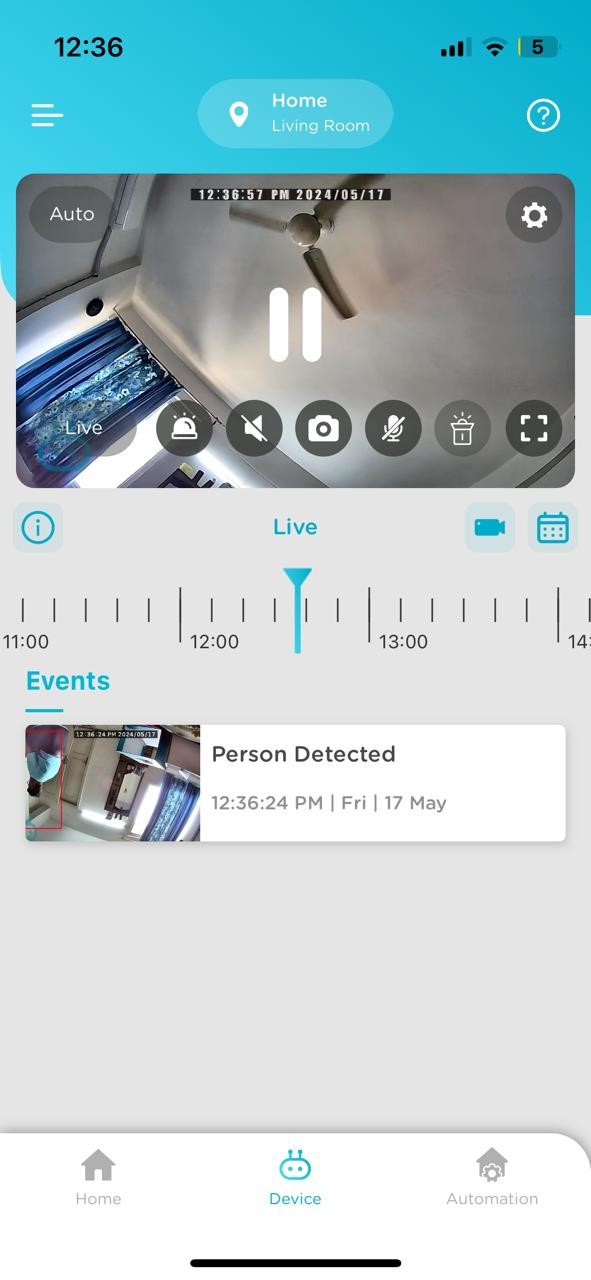
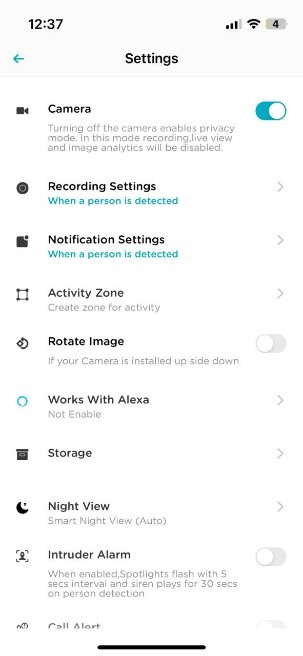
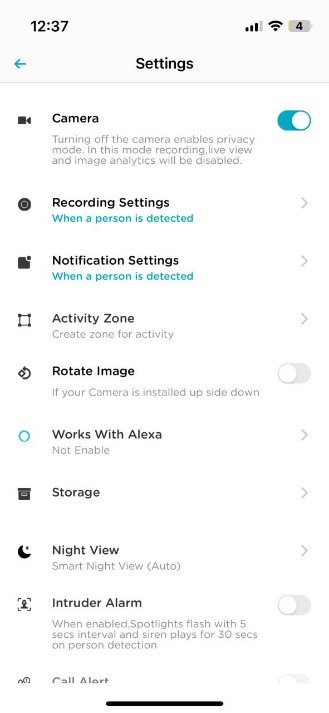
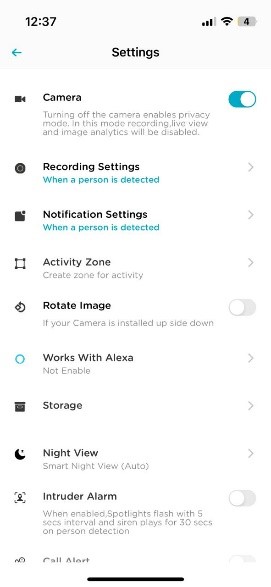
  • .Tap on Device Setting
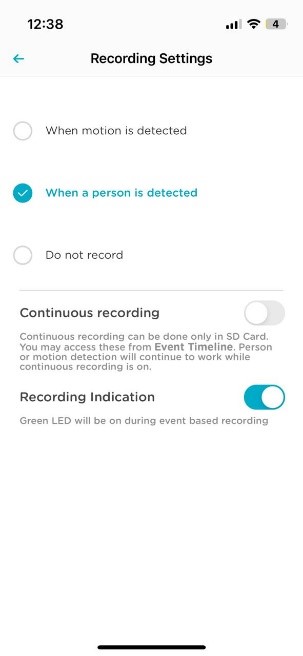
  • Tap on Recording Setting
  • Choose recording setting as per your preference
  • .Tap on Device Setting
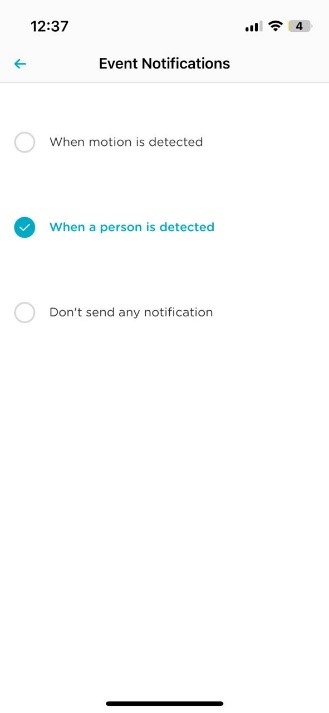
  • Tap on Notification Setting
  • Select event notification according to your preference
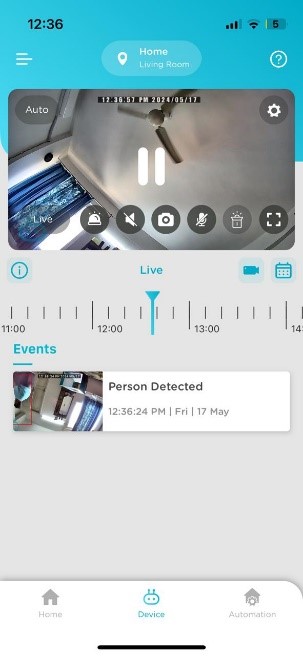
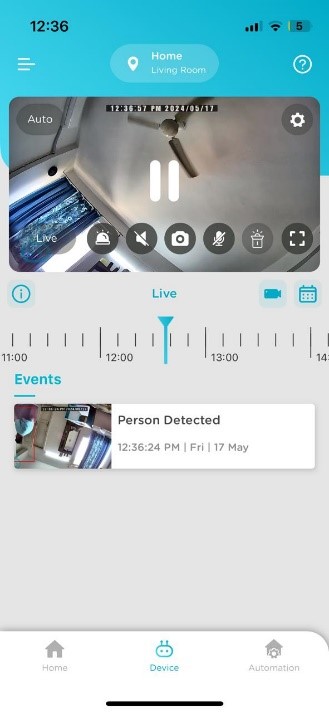
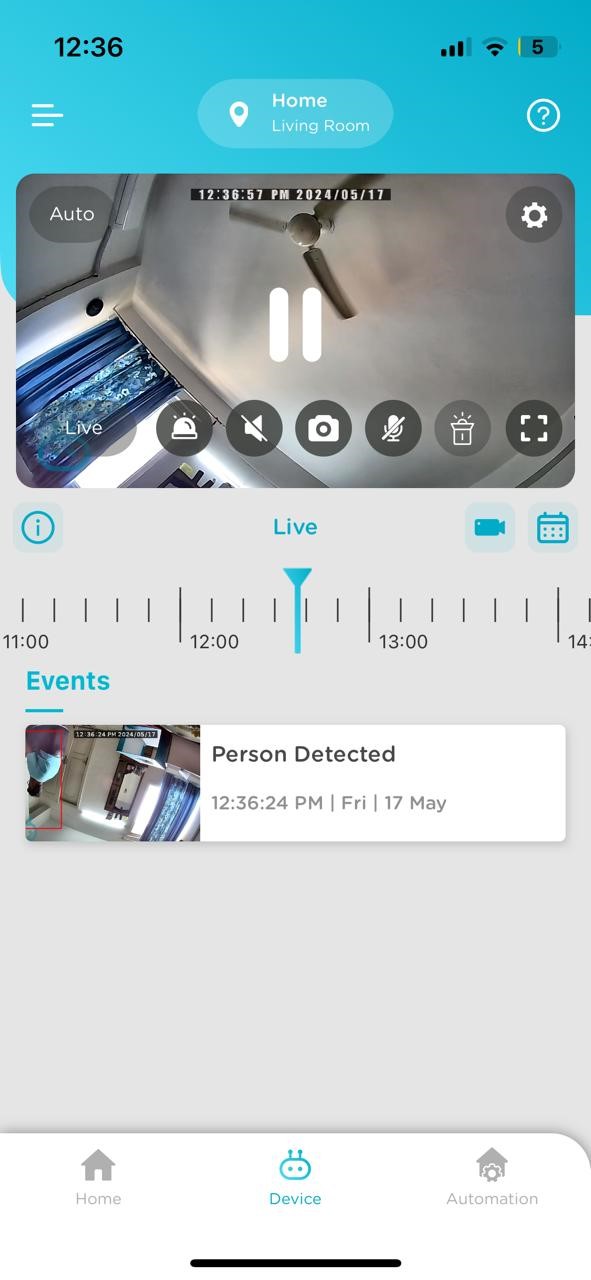
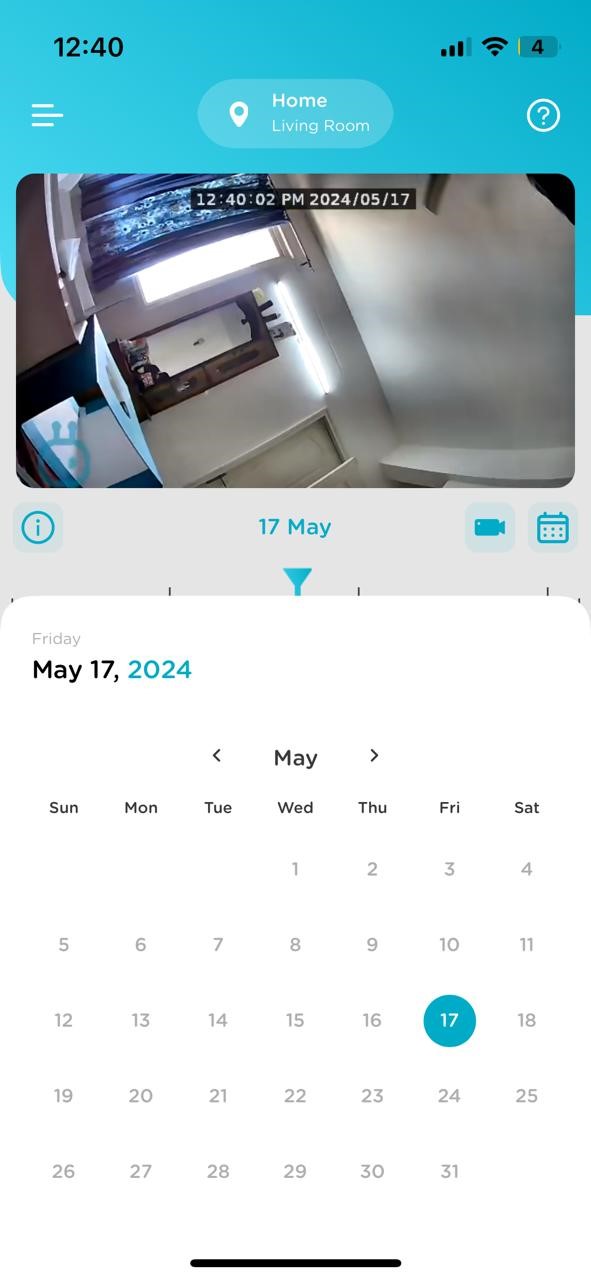
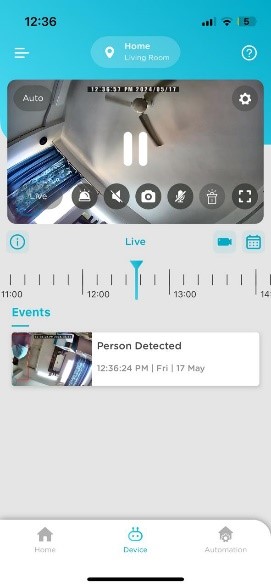
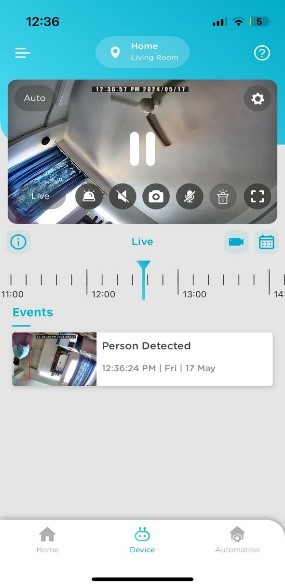
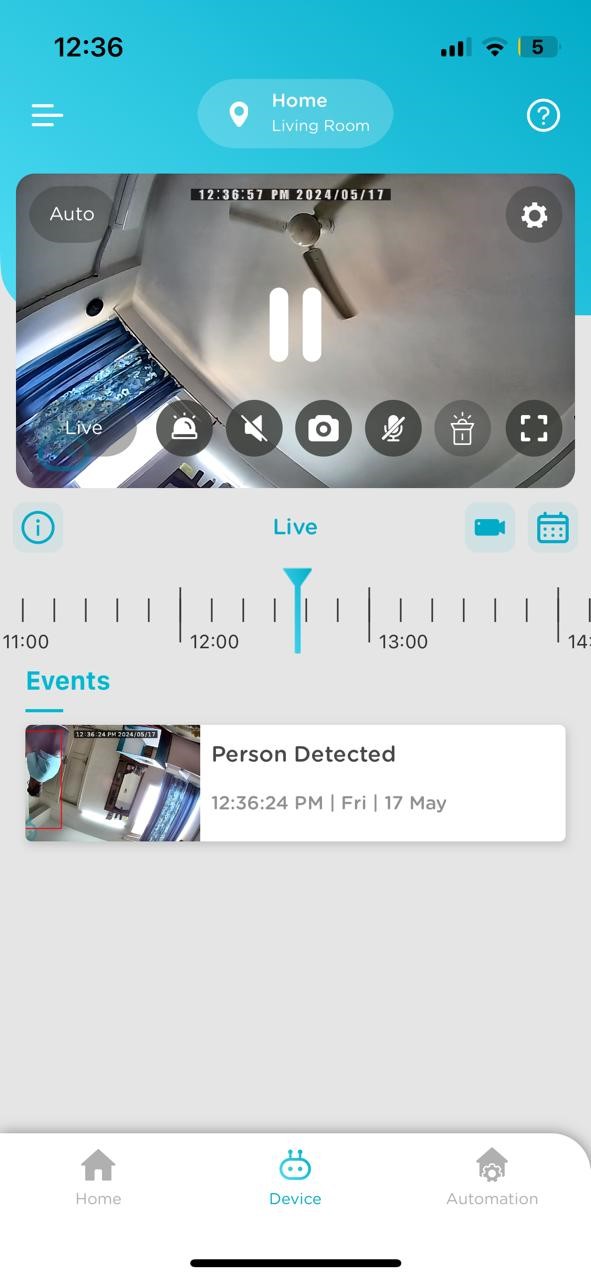
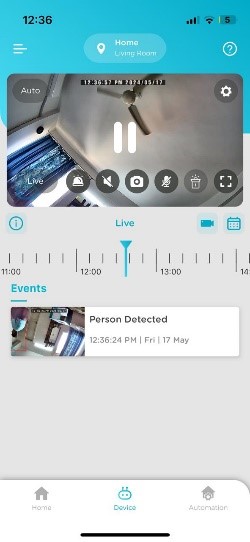
You can check recording of particular date by taping on calendar icon and selecting the date on which recording you want to see
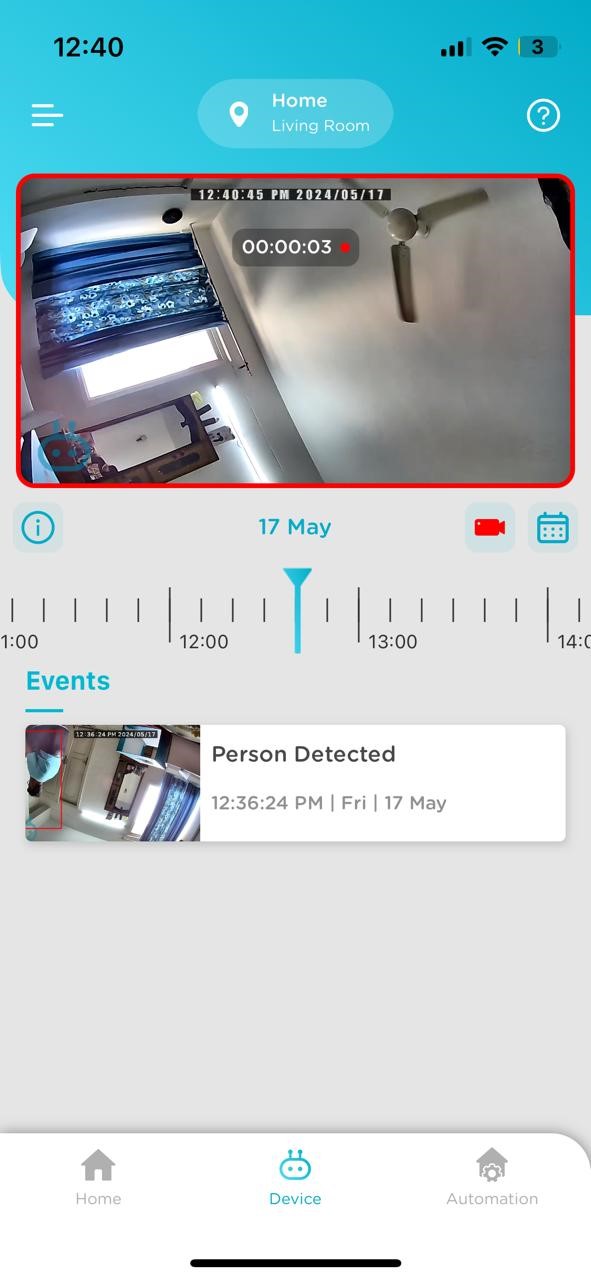
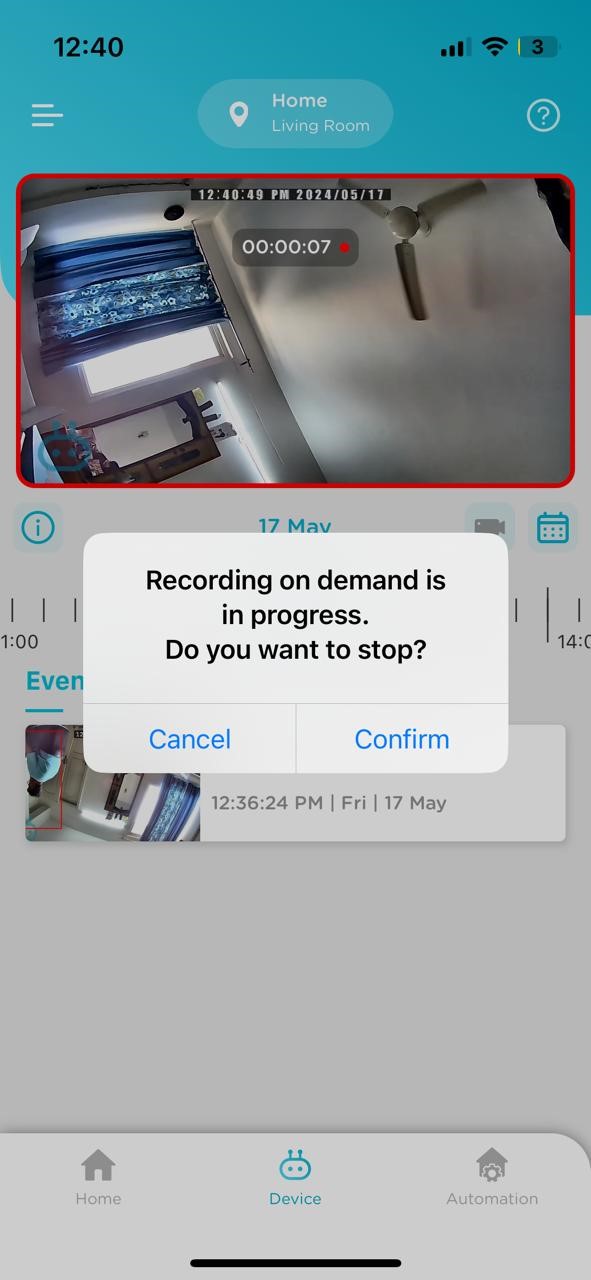
Yes, by tapping on On-Demand Recording icon and using the same icon you can stop your on-demand recording.
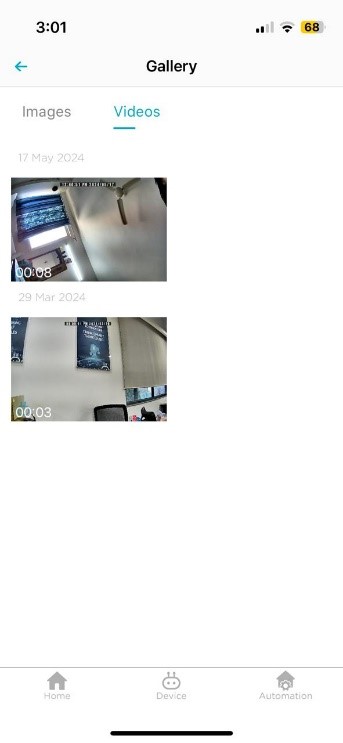
You can view the same inside the application Gallery
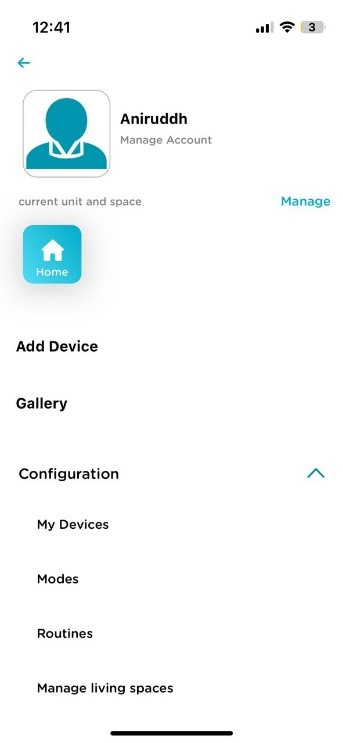
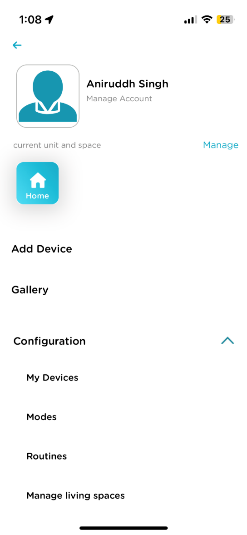
  • Tap on hamburger menu
  • Tap on Gallery
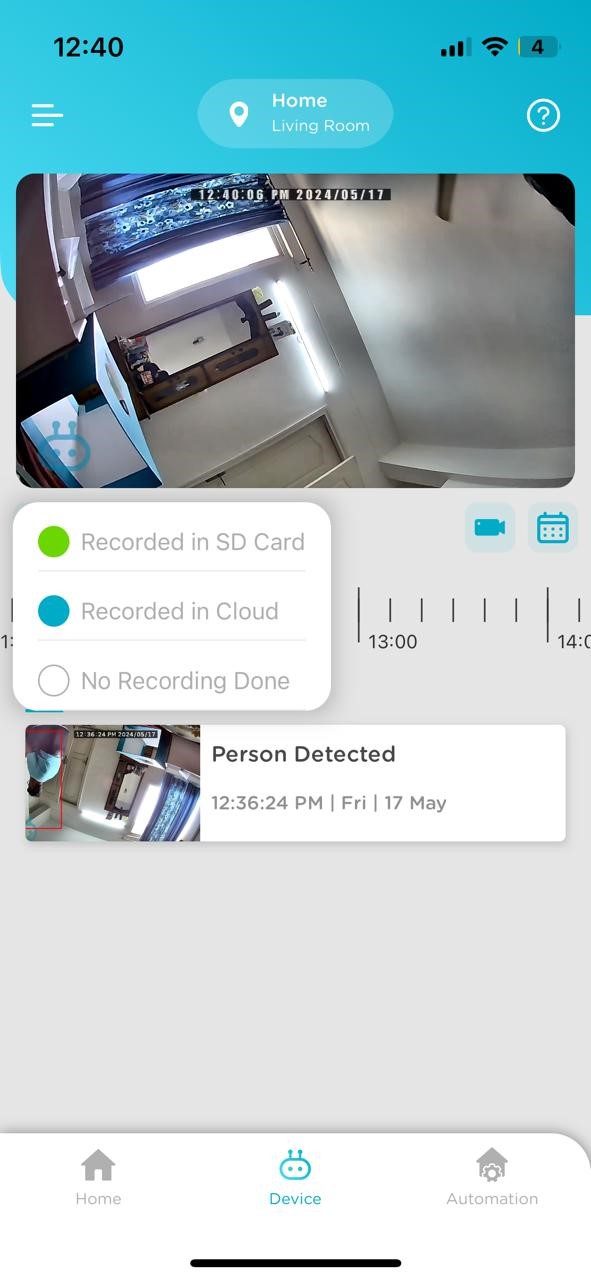
The timeline scrubber is a timer with a line that indicates a point in time in the scene. You can drag the time scrubber along the timeline to jump to a specific time in the scene/video. Color Code represent the video saved. i.e Green Color represent that Videos are saved in SD Card, Blue color represent that videos are saved on Cloud and White represent that no recordings have been done for that particular time.
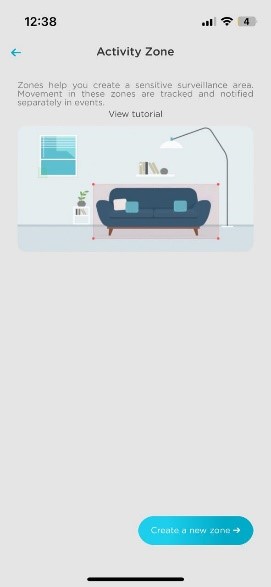
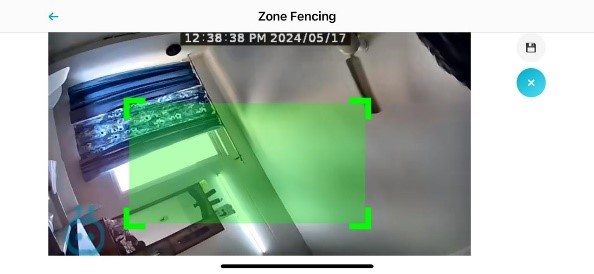
Activity zone is a smart AI feature which helps you select a designated area and in that particular area whenever there is any motion/person movement you get notifications on your device.
  • Tap on device setting
  • Tap on Activity Zone
  • Tap on Create a new zone
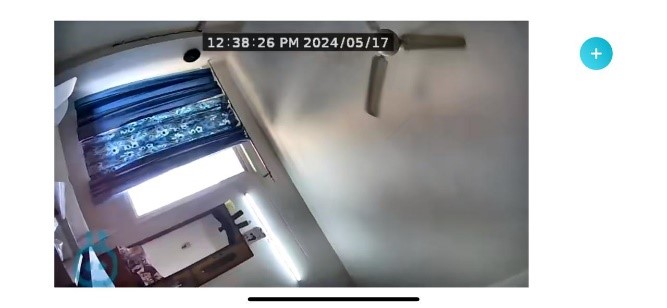
  • Tap on Plus icon on the screen
  • Select the area
  • Tap on save button
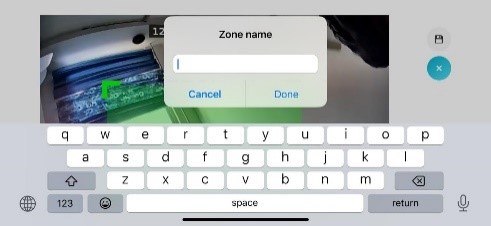
  • Name the zone name and tap on done
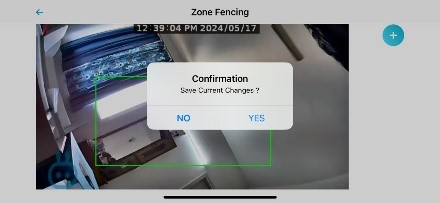
  • Tap on back button and then tap on Yes. Your Activity zone set up is done
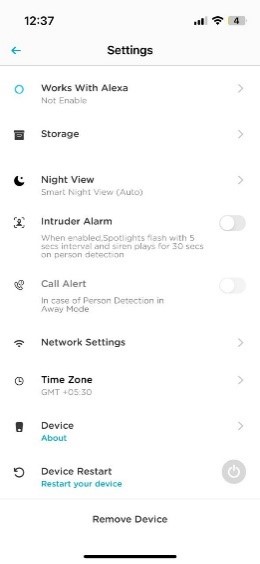
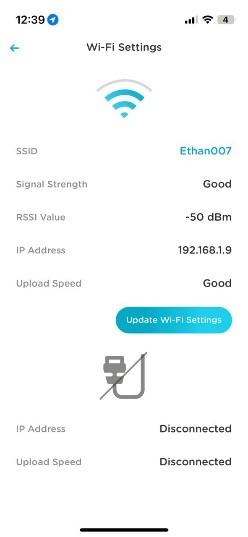
  • Tap on device setting
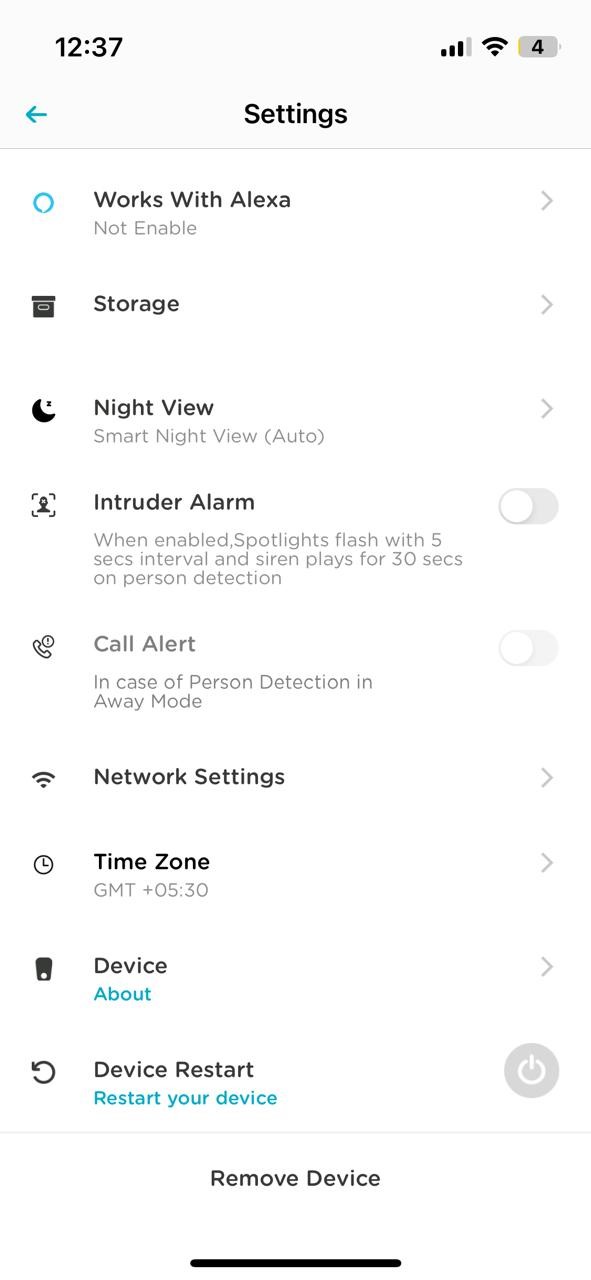
  • Scroll down and tap on Network setting
  • Tap on Update Wi-Fi Setting to change your Wi-Fi
Standard
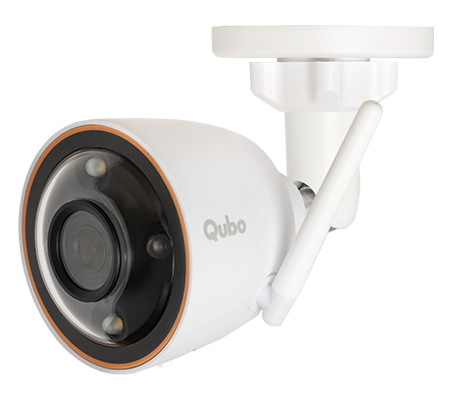
Qubo Bullet Camera is a smart camera which can be used for surveillance. Its AI features such as motion detection, person detection and Activity Zone can be used for Outdoor areas. This device works with Alexa i.e. you can see Camera live feed on Alexa display devices and can be used for two way calling too.
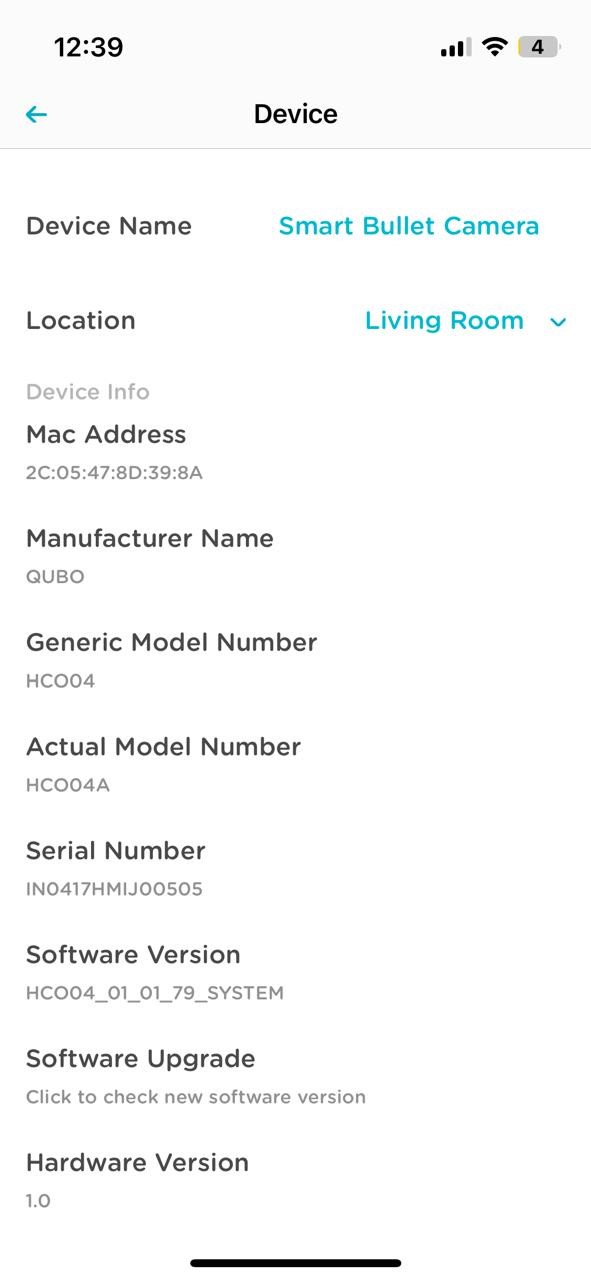
  • Tap on Device Setting
  • Scroll Down and tap on About Device
  • Mac Address and Serial Number should be on the screen.

Before Connecting the device with Application Make sure you have Powered On device and have inserted the SD card in the SD slot.
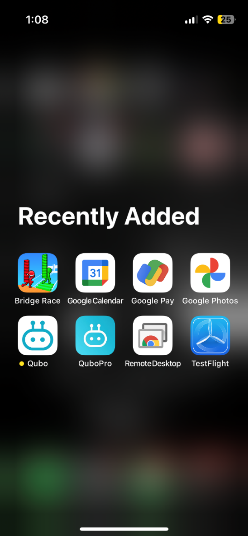
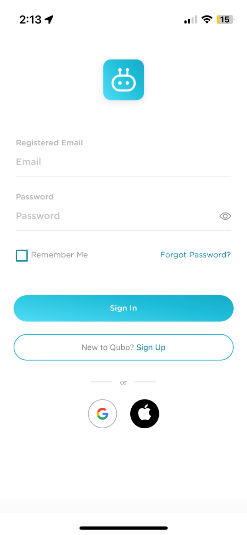
  • Install Qubo Home Application
  • If you already have account registered then Sign In or Else tap on Sign Up, Where you have to fill in all your details and verify email.
  • Tap on Hamburger Menu
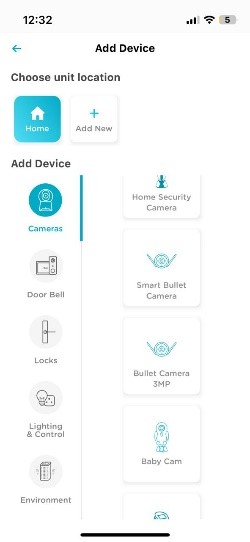
  • Tap on Add Device
  • Choose the unit location and Tap on Cameras and Scroll down to tap on Bullet Camera 3MP
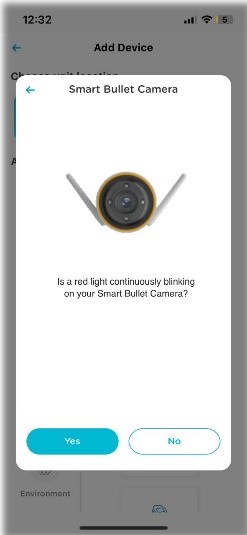
  • Tap on Yes
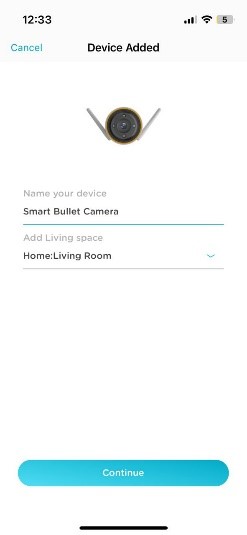
  • Name your Device and fill in details
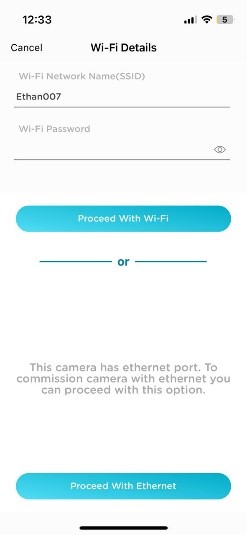
  • In case of Wi-Fi: Check your Wi-Fi network and Enter your Wi-Fi password and Tap on Proceed with Wi-Fi
  • *In case of Ethernet: Make sure you have connected your device with Ethernet cable and same cable is also connected to your Wi-Fi router. Tap on Proceed with Ethernet
    *Depends on if your model has Ethernet port or not
  • Wait for a moment and Tap on continue once the process is complete
  • Your Device is commissioned and ready to use.
Yes, it comes with IP66 weather resistant rating and hence is water and dustproof
No, it does not come with built in battery and hence you have to use Power Adapter to provide device consistent Power supply.
There is no defined range for 2-way talk. With a strong internet connection, 2-Way talk can work seamlessly.
Yes (Trigger Alarm). It can be manually activated or you can program it through routines provided in settings.
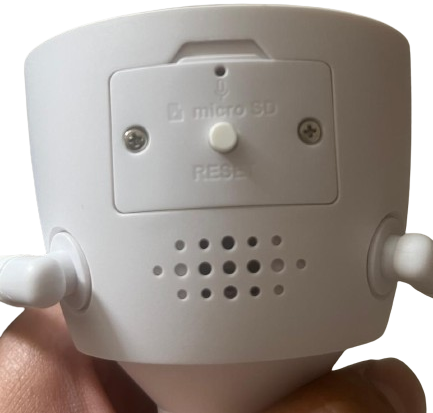
By pressing on the Reset button on the device for few seconds till you hear device saying “Bullet Cam going in reset mode”
Yes, it does support both Amazon Alexa & Google Assistant
The device has 1080p of video resolution however Bullet cam 3MP it will be 1296p of video resolution.
Storage
Using MicroSd card you can get a storage upto 1Tb
No, MicroSd card is not included in the box. Customer has to buy it separately
On Application there is an option for format SD card, please format your SD Card. C10, U3, V30, 4K UHD cards only these SD cards are recommended & also check if your card is duplicate or not.
Yes, you do get cloud storage with this device
The availability of storage space depends on your subscription plan. For subscribers, once the storage space reaches its limit, older content is automatically purged to make room for new content. However, no data is stored for users on the free subscription plan.
If you have SD card, then video recording stores in both Cloud storage & SD card in parallel. In cloud only your EVENT based recordings are stored and On SD card Once recording is full, the system purges older data and rollover the recording, it is FIFO based. If there is no SD card, no recordings can be made. Therefore, an SD card is essential for recording purposes.
You have to first remove the screws using the screw driver given in box to insert the MicroSD Card.

No results found.